
Got 10 minutes for a chat? Why not arrange a quick call with one our QR code experts? We’ll happily provide information about how they can be used, the principal benefits to your business and will answer any questions you may have.
So, you need to make a QR code, but you don’t want to mess about with complicated software? Canva’s got you covered. It’s a pretty straightforward tool for whipping up those scannable squares, whether you’re linking to a website, a social media profile, or even a special offer. This guide will walk you through using the canva qr code generator, making sure your codes look good and, more importantly, actually work.
QR codes have become a standard part of our digital lives, and for good reason. They offer a quick and easy way to bridge the gap between the physical world and online information. If you’re looking to create your own custom QR codes, Canva’s generator is a fantastic place to start. It’s built right into the platform, making the process straightforward, even if you’ve never made one before.
Before you jump into designing, take a moment to think about what you want your QR code to achieve. Are you linking to your website, a specific landing page, a social media profile, or perhaps a PDF document? Knowing your goal will help you choose the right type of QR code and ensure it’s set up correctly. For estate agents, this could mean linking directly to a property listing, a virtual tour, or even a contact form for viewings. The clearer your objective, the more effective your QR code will be.
Getting to the QR code generator within Canva is simple. Once you’re logged into your Canva account and have a design open, look for the ‘Apps’ section on the left-hand side menu. Search for ‘QR Code’ and select the relevant app. This will open up the QR code generator tool directly within your design workspace, allowing you to create and add your code without leaving Canva. You can also find the QR Code App within Canva’s settings to generate codes directly within Canva.
Creating a basic QR code is incredibly easy. The first step is always to input the URL or link you want the QR code to direct people to. Make sure the link is correct and starts with ‘https://’ for best results. Once you’ve entered your link, the generator will create a standard QR code. This is the foundation, and from here, you can start to customise it to make it more visually appealing and on-brand. For instance, if you’re creating a QR code for an estate agent’s board, you’ll want it to be easily scannable from a distance, which is where customisation and testing become important. The Scan A Sign system, for example, turns estate agent boards into always-on lead generators with editable QR codes and a simple dashboard for managing links and analytics, offering clear benefits for winning more instructions and viewings.

This is where the magic starts. You’ve got a destination in mind – maybe it’s your website, a specific property listing, a social media profile, or even a PDF brochure. Whatever it is, you need to tell the Canva QR code generator where to send people. Just find the QR Codes app within Canva, pop in your URL, and you’re good to go. It’s a pretty straightforward process, honestly. You can get your QR code ready to go in seconds by following these simple steps.
Now, let’s make it look good. A plain black and white QR code works, sure, but why not make it yours? Canva lets you play around with colours. You can change the colour of the dots to match your brand, or even customise the ‘eyes’ – those little squares in the corners. This isn’t just about looks; a well-designed QR code can actually grab more attention. Think about it: a code that blends in with your existing design or uses your brand colours is more likely to be noticed and scanned.
Want to make it instantly recognisable? Uploading your logo to the centre of the QR code is a great way to do this. It adds a professional touch and reinforces your brand identity. Just make sure your logo is square and doesn’t cover too much of the code itself, as that could affect scannability. It’s a nice little detail that can make a big difference.
For estate agents, this level of customisation is particularly useful. Think about your ‘For Sale’ boards. You can turn these into always-on lead generators with Scan A Sign. They offer editable QR codes, a simple dashboard to manage links and track scans, and clear benefits for winning more instructions and viewings. It’s about making every touchpoint work harder for you.
When designing your QR code, always remember that readability is key. While customisation is great, don’t go overboard with colours that clash or logos that obscure the code. The primary function is to be scanned easily.
Here’s a quick look at what you can customise:
This makes your QR code not just functional, but a part of your overall visual identity. It’s a small detail that can really help your marketing materials stand out. For instance, estate agents can use this to create branded QR codes for their property listings, making them instantly recognisable and professional.
So, you’ve designed your QR code, and it looks brilliant. But before you hit print, let’s talk about making sure it actually works well for everyone who tries to scan it. It’s not just about looking good; it’s about being functional.
This is a big one. Think about how a QR code is read – it’s all about the difference between the dark and light squares. If the colours are too similar, scanners can get confused. You want a clear distinction. Black on white is the classic for a reason, but you can get creative. Just keep that contrast high. For example, a dark blue on a light yellow background will work much better than a light grey on white. It’s about making those little squares pop.
The most important thing for a scannable QR code is the contrast between the foreground and background colours.
Printing a QR code too small is a common mistake. If people have to squint or get their phone right up to it, they might just give up. For most uses, a minimum size of 2cm x 2cm is a good starting point for printed materials. If it’s going on something like an estate agent’s ‘For Sale’ board, you’ll want it much larger so it can be scanned from a distance, even from a car. Scan A Sign, for instance, offers large-format QR codes that can be read from up to 5 metres away, turning your boards into always-on lead generators.
Seriously, don’t skip this step. It takes seconds, but it can save you a lot of hassle. Print out a test version or even just display it on your screen and try scanning it with a few different phones. Does it go to the right link? Is it quick to scan? If it’s not working perfectly, go back and tweak it. It’s much easier to fix now than after you’ve printed 1,000 flyers.
So, you’ve designed a snazzy QR code in Canva. Brilliant! Now, let’s get it into your hands and out into the world.
When you’re ready to download, Canva usually gives you a few options. For most uses, a PNG file is a solid choice. It’s great for digital use, like on websites or social media, and it holds up well for printing too. If you need something that can be scaled infinitely without losing quality – think large posters or signs – then an SVG file is your best bet. It’s a vector format, which means it’s made of mathematical paths rather than pixels, so it’s super sharp no matter how big you make it. You can download your dynamic QR code as a PNG or SVG file by selecting ‘More’ and then choosing your preferred download format. The system also addresses deactivated dynamic QR codes. Download your QR code.
Once downloaded, you can pop your QR code into pretty much anything. Need it on a flyer? Easy. Want it on a business card? No problem. Just drag and drop it into your Canva design, or any other design software you’re using. Remember to keep some space around the QR code – this is called the ‘quiet zone’ – to make sure scanners can pick it up easily. It’s like giving the QR code its own little bubble to breathe in.
When it comes to printing, a few things can make or break your QR code’s scannability. High contrast is king. A dark code on a light background (or vice versa) is much easier for phones to read than muted colours. Also, think about size. For something people will scan from a distance, like an estate agent’s board, you’ll want it bigger. For a flyer or business card, a smaller size might be fine, but always test it. Speaking of testing, always, always test your QR code before you send your design off to print. Scan it with a few different phones and apps to make sure it works perfectly.
For estate agents, this is where something like Scan A Sign really shines. They turn your ‘For Sale’ boards into always-on lead generators. You get editable QR codes, which means you can change where they point without reprinting the board – super handy when a property sells. Plus, they offer a simple dashboard for managing all your links and checking out the analytics. This means you can see how many people are interested, win more instructions, and get more viewings. It’s a smart way to make your marketing work harder for you. Scan A Sign offers dynamic QR codes.
Here’s a quick checklist for print:
While Canva makes creating basic QR codes a breeze, there’s a whole world of advanced features that can really make your codes work harder for you. Think beyond just linking to a website; these tools can transform how you connect with your audience and track engagement.
Static QR codes are like a one-way street – once created, they’re fixed. Dynamic QR codes, however, are much more flexible. The real magic of dynamic QR codes is that you can change the destination link without ever needing to reprint the code itself. This is a massive time and cost saver. Imagine you’ve printed 1,000 flyers with a QR code linking to a specific product. If that product sells out or you update its details, you don’t have to bin all those flyers. You simply update the link associated with the dynamic QR code, and it instantly points to the new information. This flexibility is particularly useful for time-sensitive promotions or listings that change frequently.
This is where things get really interesting. Dynamic QR codes often come with built-in analytics, giving you a peek into how people are interacting with your codes. You can see:
This data is gold. For estate agents, for example, platforms like Scan A Sign turn ‘For Sale’ boards into always-on lead generators. They offer a simple dashboard to manage links and track analytics, showing you exactly how many potential buyers are interested in a property. This helps you win more instructions and secure more viewings by demonstrating tangible marketing results.
The ability to track scans provides invaluable insights. It helps you understand what’s working, where your audience is located, and when they’re most engaged. This data allows for informed decisions, helping you refine your marketing strategies for better outcomes.
When you combine dynamic QR codes with analytics, you’ve got a powerful marketing tool. For estate agents, this means transforming a static ‘For Sale’ board into an interactive property listing. Instead of just a phone number, a QR code can link directly to a property’s webpage, virtual tour, or even a contact form for viewings. Scan A Sign, for instance, allows you to update the property details linked to the QR code as soon as a property is sold, readying the board for the next listing without reprinting. This not only saves money but also ensures your marketing materials are always current. It’s about making your boards work harder, providing instant information to interested buyers and giving you the data to prove your marketing’s effectiveness to sellers. This can be a significant factor in winning new instructions and demonstrating value to potential clients.
| Feature | Benefit |
|---|---|
| Dynamic Links | Update destination without reprinting codes. |
| Performance Tracking | See scan counts, locations, and times for campaign analysis. |
| Brand Integration | Customise appearance to match your branding for better recognition. |
| Multi-Link Options | Direct users to multiple destinations from a single QR code. |
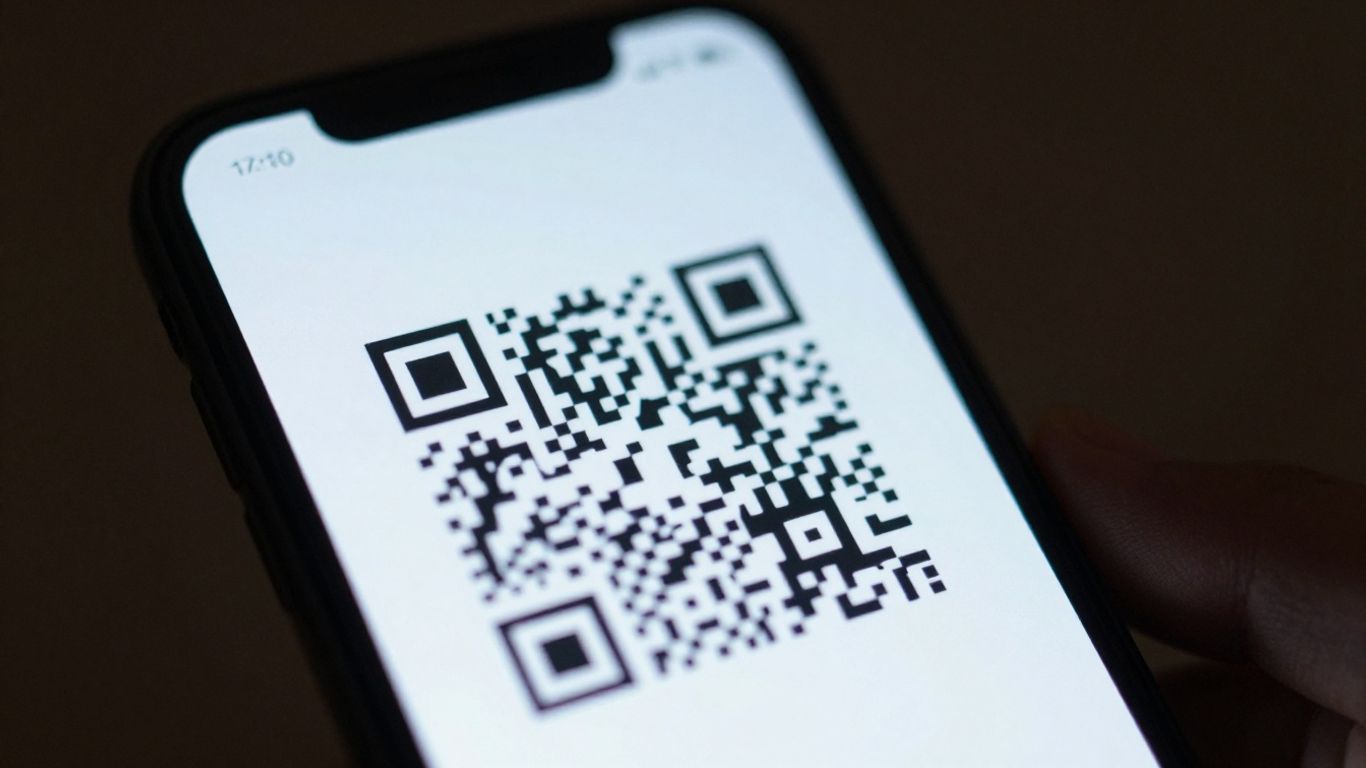
Even with the best intentions, sometimes your QR code might not behave as expected. Don’t worry, most issues are pretty straightforward to fix. Let’s walk through some common problems and how to sort them out.
This is probably the most common headache. You’ve designed a snazzy QR code, but scanners just aren’t picking it up. Several things could be at play here. First off, check the basics: is the code clear and large enough? For print, aim for at least 2cm x 2cm, and make sure there’s a good contrast between the dark and light areas. A common mistake is having a busy background or colours that are too similar. Think black on white, or a dark colour on a light, solid background. Also, ensure you haven’t accidentally cropped out the ‘quiet zone’ – that’s the blank space around the code that scanners need to read it properly [93ab].
If you’ve added a logo, make sure it hasn’t obscured too much of the code. Sometimes, a logo that’s too large or too detailed can make the code unreadable. You might need to simplify the logo or make the QR code itself a bit larger to accommodate it.
So, the QR code scans, but it sends people to the wrong place, or nowhere at all. This usually points to an issue with the link itself. Double-check the URL you entered when creating the code. A tiny typo, like a missing ‘s’ in ‘https://’ or an extra slash, can break the link. If you’re using a URL shortener, ensure the shortened link is still active and hasn’t expired.
For estate agents, this is where dynamic QR codes really shine. With a system like Scan A Sign, you can easily update the link through a simple dashboard, even after the QR code has been printed [8781]. This means if a property is sold or details change, you don’t need to reprint anything. You just hop onto your dashboard and redirect the QR code to the new information. It turns your ‘For Sale’ boards into always-on lead generators that you can update on the fly.
Most people will be scanning your QR code with their smartphone, so it’s vital that the destination page is mobile-friendly. If the link leads to a website that’s not optimised for mobile, users will have a frustrating experience. They might just give up and look elsewhere. Always test your QR code on a few different devices and operating systems to make sure the landing page loads correctly and looks good on all of them.
The goal is to make the scanning experience as smooth as possible. Any friction, from a code that won’t scan to a page that’s a pain to view on a phone, can lose you a potential customer or lead. Think about the entire journey from scan to information.
For estate agents, this means ensuring the property listing page linked from your ‘For Sale’ board is easy to navigate on a phone, with clear photos, floor plans, and contact details. Scan A Sign helps with this by allowing you to manage all your links and track performance from a single dashboard, giving you clear benefits for winning more instructions and viewings [e7ea].
Having trouble with your QR codes? Don’t let common glitches stop your flow. We’ve put together some handy tips to get things working smoothly again. If you’re still stuck, our team is ready to help. Visit our website for more solutions and expert advice.
So there you have it. Using Canva’s QR code generator is pretty straightforward, right? You can whip up a scannable link in no time, and even give it a bit of your own style. It’s a simple tool, but it can make a real difference in connecting your physical materials to the online world. Whether it’s for a business card, a poster, or something else entirely, it’s a handy bit of tech to have in your toolkit. Give it a go next time you need to bridge that gap – you might be surprised at how easy and effective it is.
A QR code generator is a tool that turns a web address or other information into a scannable square code. Canva’s generator lets you easily create these codes for free. You just type in the link you want, and it makes the code for you. You can even change the colours to make it look nice!
Yes, you absolutely can! Canva allows you to upload your own logo and place it right in the middle of your QR code. This is a brilliant way to make your code look professional and match your brand’s style.
To make sure your QR code scans well, use colours that stand out from each other. For example, dark dots on a light background work best. Also, don’t make the code too small when you print it – about 2cm by 2cm is a good minimum size.
Canva usually lets you download your QR code as a PNG file. This type of file is great for using on websites, in digital ads, and for printing on things like flyers or posters.
Dynamic QR codes are a bit smarter. They let you change the link the code points to *after* you’ve already printed it. This is super handy because if the website address changes, you don’t need to print new codes. You just update the link in your account.
If your QR code isn’t scanning, first double-check that the link you entered is correct and starts with ‘https://’. Also, make sure there’s good contrast between the code’s colours and the background. It’s always a good idea to test your QR code with your phone’s camera before you use it widely.